
Before you start
Keep a copy of the original and work on a document you are authorized to change. Existing text replacement uses standard fonts. You can select a block or a line, move it, and resize its box. Text grows or wraps inside the page while nearby content stays in place. Custom embedded fonts may look different.
Open the PDF and find the line
Open Edit PDF, choose your file, and select Open in editor. Use the page thumbnails to navigate to the page with the typo. You can also choose Try a sample on the homepage to explore the controls with the sample proposal.
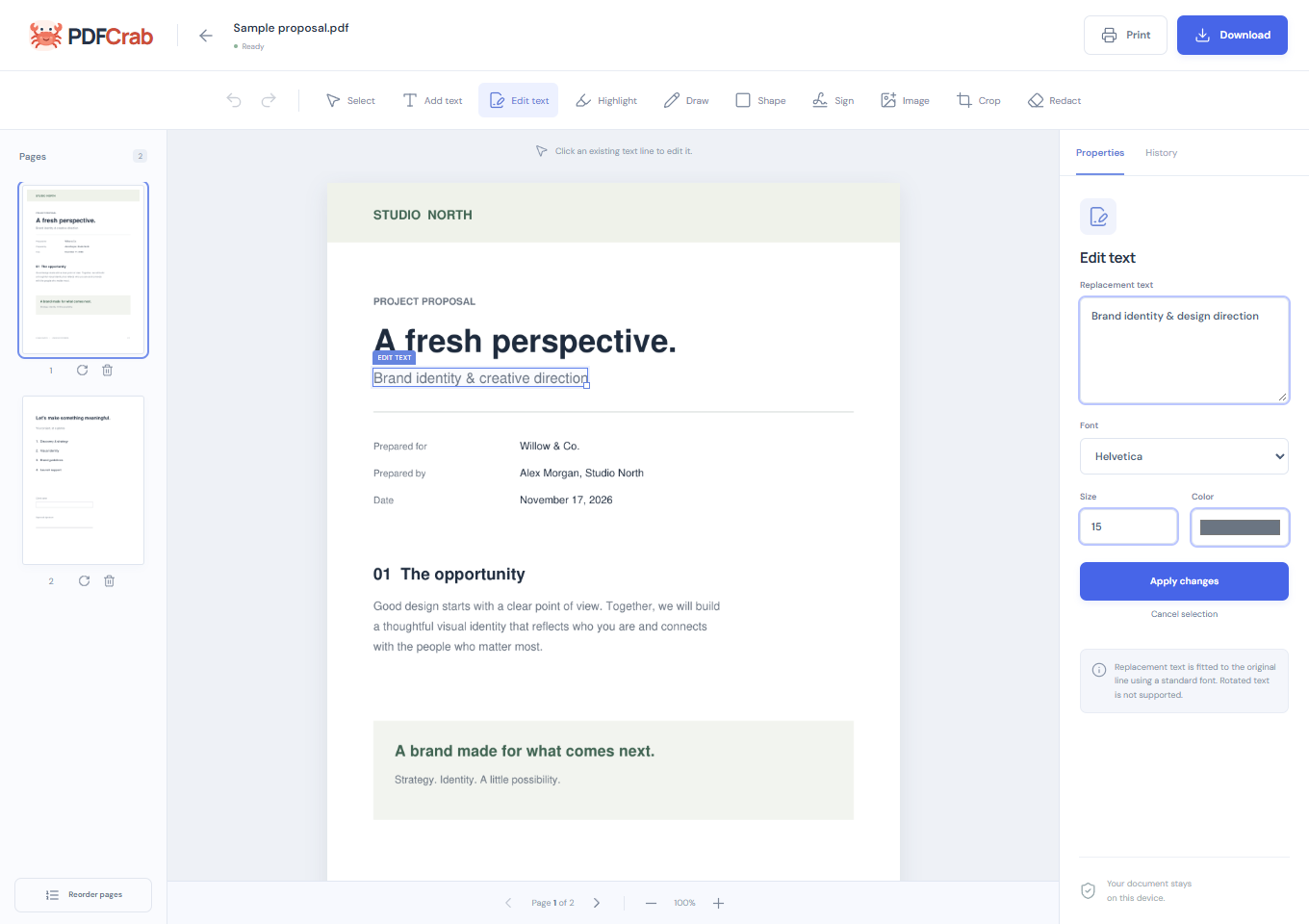
Choose Edit text in the toolbar. Choose Line or Block under Select text as, then click the text you want to correct. The Properties panel shows the current line in the Replacement text box. If you selected a neighboring line, click the correct one before editing.
Correct the wording in Replacement text
Edit the line in Replacement text. For a typo, keep the surrounding wording and change only the incorrect word. In our sample, the subtitle changes from “Brand identity & creative direction” to “Brand identity & design direction.”
Review the Font, Size, and Color controls. Longer wording expands the box at your chosen font size. Drag a handle to set its width and wrap the text, or type exact dimensions. Drag the box to reposition it before applying.
Apply the change and inspect the page
Select Apply changes. Check the new text against the rest of the page, including its baseline, spacing, and font size. The replacement becomes part of the saved document.
If the result does not look right, choose Undo. Select the text again and adjust the position, width, font, or size. Boxes grow in height to show all their text, but surrounding page content does not move automatically.
If the page has no editable text
A scanned page may be a single image rather than a set of text lines. PDF OCR can create a searchable text layer, but it does not recreate the original editable layout. Recognized text may contain errors, and changing an OCR layer may not cleanly replace the visible letters in the scan.
For an extra note on a scan, use Add text to place a new text box. For an exact correction to existing scanned wording, the most reliable route is to update the original document and export or scan it again. Rotated text is also outside the existing-line replacement tool.
Download your edited PDF
Select Download and reopen the resulting PDF. Check the corrected line and nearby content at a comfortable zoom before sharing it.
The original file stays on your device unchanged. Changes and undo history live in the current editing session, so download the result before closing or reloading the tab.
Common questions
Why does the font look a little different?
The text replacement tool uses standard fonts. A PDF can contain custom or embedded fonts that do not have an identical replacement in the editor.
Can I rewrite an entire paragraph?
Yes. Select Block to edit a group of adjacent matching text lines. Resize the box to wrap the paragraph, and move it to an open area. Use Line for a precise single-line correction.