
Before you start
Review the scans for missing pages, readability, and orientation. Merge accepts up to 30 PDF files, up to 40 MB per file, with a maximum combined output of 150 pages. Processing uses your device, so large image-heavy scans can take longer.
Check whether the scans are PDFs or images
If your scanner produced .pdf files, start with Merge PDF. If it produced .jpg, .jpeg, or .png images, use JPG to PDF to turn the images into a PDF first. That tool accepts supported image formats, including PNG.
For a mixture of images and existing PDFs, convert the images first and download that PDF. Then combine it with your existing PDFs using Merge PDF. OCR is not required just to combine pages.
Choose the PDFs you want to combine
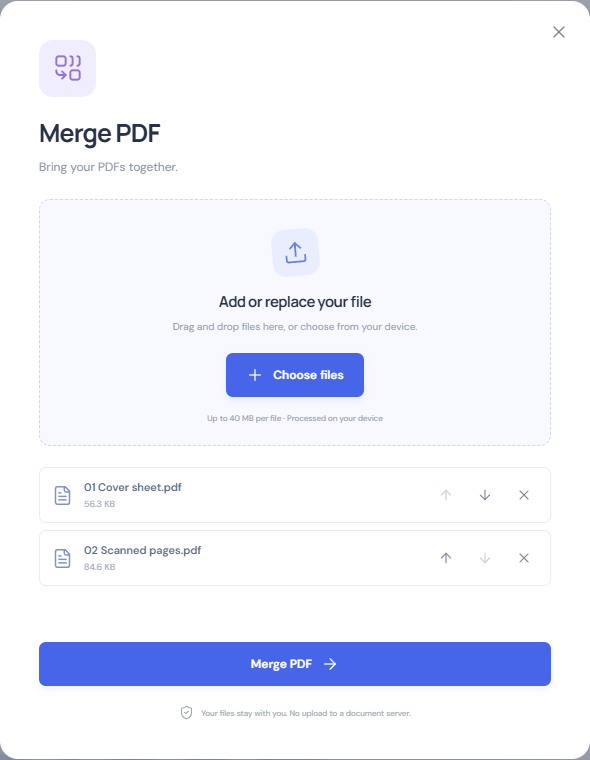
Open Merge PDF and select Choose files. Select the PDFs from your device, or drag them into the file area. You can add more files before running the merge.
Use descriptive filenames, such as “01 Cover sheet.pdf” and “02 Scanned pages.pdf”, to make the file list easier to check. The tutorial screenshot uses fictional sample files.
Put the documents in the right order
Use the up and down controls next to each filename to arrange the documents. The merge includes all pages of the first file, followed by all pages of the second file, and so on. Remove any file you added by mistake.
For example, place a one-page cover sheet before a two-page scan. The result should contain three pages, with the cover first. File ordering does not rearrange pages inside an individual PDF.
Merge and review every page
Select Merge PDF. When processing finishes, choose Download PDF or Continue in the editor to review the combined document.
In the editor, check the page thumbnails and open each page to confirm its orientation and order. Rotate a sideways page using its thumbnail control. Organize PDF can change the page order after merging. Remember to download again if you make further changes.
Make the result easier to use
If you need searchable text, run PDF OCR on the merged copy and review the recognized text. The current OCR tool recognizes English. Searchable text is useful for finding words, but recognition quality depends on the scans.
Compress PDF may reduce repeated resources or inefficient document data. It does not aggressively reduce image resolution, so already compressed scans may stay the same size. Keep your original scans until you have checked the downloaded result.
Common questions
Will merging make blurry scans clearer?
No. Combining pages does not restore missing detail. Rescan an unreadable page before merging when possible.
Can I combine password-protected PDFs?
You need the correct password. If the files have different passwords, unlock each one separately using its own password, then merge the unlocked copies. Only do this for documents you are authorized to access.